
Hey everyone. I need to talk about something that isn’t about books for a minute, but it affects pretty much everyone who reads this blog.
On October 30, Meta’s new business terms kick in. If you use Facebook or Instagram for your business (an author page, Meta Business Suite, ads, boosted posts), those terms say Meta can send bots to the website connected to your account and use what it finds to train its products. That includes its AI. You don’t sign anything. You just keep using Facebook and Instagram, and that counts as agreeing. Nieman Lab broke the story if you want the details.
That got my attention fast. My whole site exists because of authors’ work: the book descriptions, the covers, the hours of sorting every title by trope and spice level. A lot of you are authors, artists and bookstagrammers with your own sites full of your own work. I don’t love the idea of any of it being scooped up without anyone asking.
So I spent this afternoon locking down my site, and I want to show you how to do yours. It took me about 10 minutes, and that included a couple of wrong turns I’ll warn you about.
The short version
Meta says you can still keep its AI bot out with a little file called robots.txt. It’s basically a sign on your website’s front door that says which bots are allowed in. The catch is that it’s a polite request, not a lock, and some legal experts think Meta could argue its new terms override it.
So I did two things: I put up the sign, and then where I could, I actually locked the door.
The sign is these two lines:
User-agent: meta-externalagent
Disallow: /
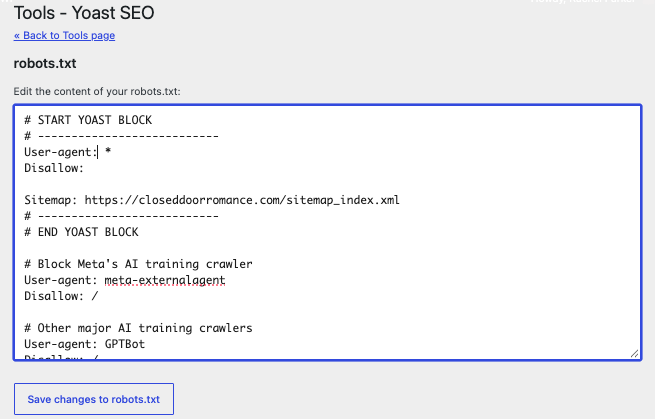
That’s the name of Meta’s AI training bot, and “Disallow: /” means “stay out of everything.” I also blocked a few other big AI training bots while I was in there. If you want to do the same, add these too:
User-agent: GPTBot
Disallow: /

User-agent: CCBot
Disallow: /

User-agent: Google-Extended
Disallow: /

User-agent: Applebot-Extended
Disallow: /
Don’t worry, none of these affect Google search. Google-Extended sounds scary, but it only covers Google’s AI training, not whether people can find you on Google.
Now here’s where to put those lines, depending on what your site runs on.
If you’re on WordPress (this is what I use)
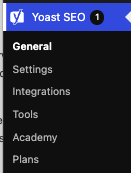
I use Yoast SEO, so here’s exactly what I did. In your WordPress dashboard, go to Yoast SEO, then Tools, then File editor.
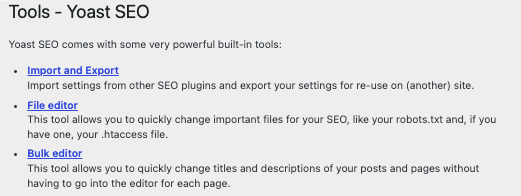
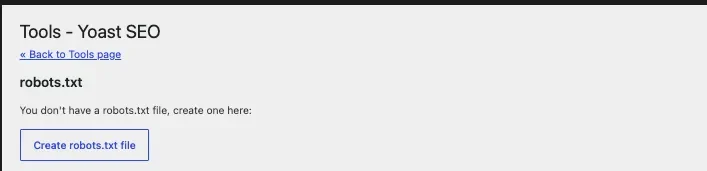
Mine said “You don’t have a robots.txt file,” with a button to create one. I clicked it, and Yoast filled in a few starter lines that end with # END YOAST BLOCK. I clicked at the very end of that line, hit Enter twice, pasted my lines, and clicked “Save changes to robots.txt.”
Two warnings from my own fumbling. First, there’s a second box on that same page for something called .htaccess. Do not touch it. It runs your server, and messing with it can take your site down. Second, if you suddenly see a wall of code with words like <div> everywhere, you’ve opened the page source by accident (I did this). Just close that tab and go back.
If you use Rank Math instead, it’s under Rank Math, General Settings, Edit robots.txt. You may need to switch Rank Math to Advanced mode to see it. If you use All in One SEO, go to All in One SEO, Tools, Robots.txt Editor, turn on custom robots.txt, and add a rule with meta-externalagent as the user agent, Disallow as the rule, and / as the path.
Locking the door with Wordfence
This is the part that actually turns Meta’s bot away, even if it ignores the sign. I already had the free Wordfence plugin for security, so this was easy.
Go to Wordfence, then Firewall, then the Blocking tab, and click Custom Pattern. In the Browser User Agent box, type *meta-externalagent* (with the stars). Leave the other boxes empty, give it a reason like “Meta AI crawler,” and click “Block Visitors Matching this Pattern.” Then do it one more time with *meta-externalfetcher*. That’s another Meta bot, and Meta says it doesn’t always listen to robots.txt.
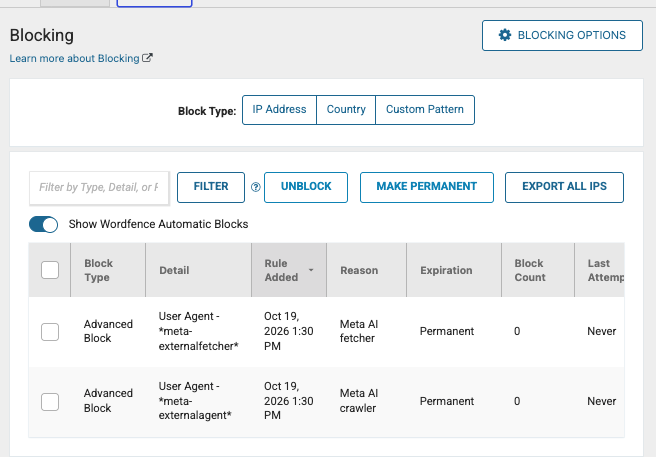
You’ll see both rules listed as Permanent. Every so often, I’ll peek at the Block Count column to see if Meta has come knocking.
If you’re on Squarespace
Squarespace doesn’t let you edit robots.txt yourself, but it has a setting that does the work for you, and it covers Meta’s AI bot. Go to Settings, then Crawlers (or just search “crawlers”), and turn on the option to block Artificial Intelligence Crawlers. Leave the search engine crawlers alone so Google can still find you.
If you’re on Wix
Wix has a robots.txt editor built in. From your dashboard, open SEO & GEO, scroll down to Tools and settings, and click Robots.txt Editor, then View File. Paste the lines at the bottom of what’s already there, click Save Changes, and then Save. If anything looks off afterward, there’s a Reset to Default button on the same screen.
If you’re on GoDaddy
My site is actually hosted on GoDaddy, but it runs on WordPress, so the WordPress steps above are what I used. If you log in at yoursite.com/wp-admin, that’s you too.
If you built your site with GoDaddy’s own website builder, I couldn’t find a setting for this in their help pages. I’d reach out to GoDaddy support, send them the two lines from above, and ask if they can add them for you.
If you’re on Shopify
This one takes a few more clicks, so go slowly. In Shopify admin, go to Online Store, then Themes. Click the three dots next to your live theme and choose Edit code. Open the Templates folder. If you see a file called robots.txt.liquid, open it. If not, click “Add a new template,” pick robots.txt, and create it.
You’ll see some code already in there. Leave all of it exactly as it is. Scroll to the very bottom, paste your lines below everything else, and save.
A quick note on Cloudflare
If your site runs through Cloudflare, you can block Meta’s bot there too. In Cloudflare, pick your site, open AI Crawl Control, and set Meta-ExternalAgent to Block. One warning: don’t use the big “block all training bots” option. It now blocks Google too, and you definitely don’t want that.
Funny story: I had a Cloudflare plugin on my site and assumed that meant my site ran through Cloudflare. It doesn’t. That plugin only handles the “are you human?” check on my login page. If you’re not sure, skip this part. Wordfence or your platform’s setting has you covered.
Make sure it worked
Type your website address with /robots.txt on the end into your browser, like yoursite.com/robots.txt. You should see your new lines. If you still see the old version, clear your site’s cache and refresh.
[SCREENSHOT: closeddoorromance.com/robots.txt showing the new lines]
One more thing: whatever you do, don’t block a bot called facebookexternalhit. That’s the one that makes your links show a picture and title when you share them on Facebook and Instagram. And don’t block Googlebot, because that’s how people find you on Google.
While you’re at it: your Instagram posts
This is separate from your website, but it’s worth two minutes. Instagram can use public posts in its AI image features unless you turn it off. Go to your profile, tap the menu in the top right, tap Sharing and reuse, and turn off the AI options for Posts and Reels.
A few things people have asked me
Will this hurt my SEO? No. You’re only naming AI bots. Google’s search bot is left alone.
Does this pull back anything Meta already took? Sadly, no. It only works from here on out.
My stuff is only on Etsy, Substack or Linktree. Those sites control their own settings, so there’s nothing for you to change. This is one more reason I love having my own website.
Should I just quit Facebook and Instagram? That’s totally your call. I’m not going anywhere, because that’s where so many of you are. But I’m doing what I can to protect my own little corner of the internet.
If this helped, please send it to an author, artist or creator friend with a website. Most people I’ve mentioned this to had no idea it was happening. And come say hi on Instagram at @closeddoorromance.
I’m not a lawyer, and this isn’t legal advice. Platforms change their menus all the time, so if a step doesn’t match what you see, check your platform’s help pages. Last updated October 19, 2026.